Where this lives now
This is no longer a page of its own. It is a section you can open on the trainer, beside the drills it is about, and the old address takes you there. It is reference material about hardware: what the buttons are called, what each kind of device is good and bad at, and what the tournament rules say.
Configuring a pad is a separate thing, and it is also on the trainer: press a button on a connected controller and the offer to map it appears.
Configuring your own controller happens in three other places:
- The gamepad icon in the header, on any page. That is a deliberate reconfigure, so it goes straight to the full mapper.
- Automatically, the first time the site sees a controller it has no saved mapping for. A panel appears over whatever page you are on and asks one question.
- Inside the Button mapping panel on the trainer, which runs its own copy of the same mapper because that page also reads the pad as practice input.
The keyboard's attack layout is remappable too, in the trainer's Keyboard mapping panel.
Buttons

Tekken numbers limbs, not buttons. 1 and 2 are the left and right punch, 3 and 4 are the left and right kick, and the common pairs are written by joining them: 1+2 is both punches, 3+4 is both kicks. Punches on top, kicks below, left side first.
Because the numbers describe limbs, they stay true no matter which physical button you have bound. This is why the site uses them everywhere, including in its own mapper, where you arm "1" and then press whatever your 1 actually is.
Common motions
A short table of inputs you will meet constantly, with what each one means: generic launchers, dash-in attacks, chorded buttons, held directions written as a capital letter, the crouch-dash launcher, and the slash spelling of a diagonal.
It is a sampler. The notation guide has the grammar, and settings is where you switch between the western, numpad and glyph ways of showing an input; every notation on this site follows that choice, including the tables here.
Input devices
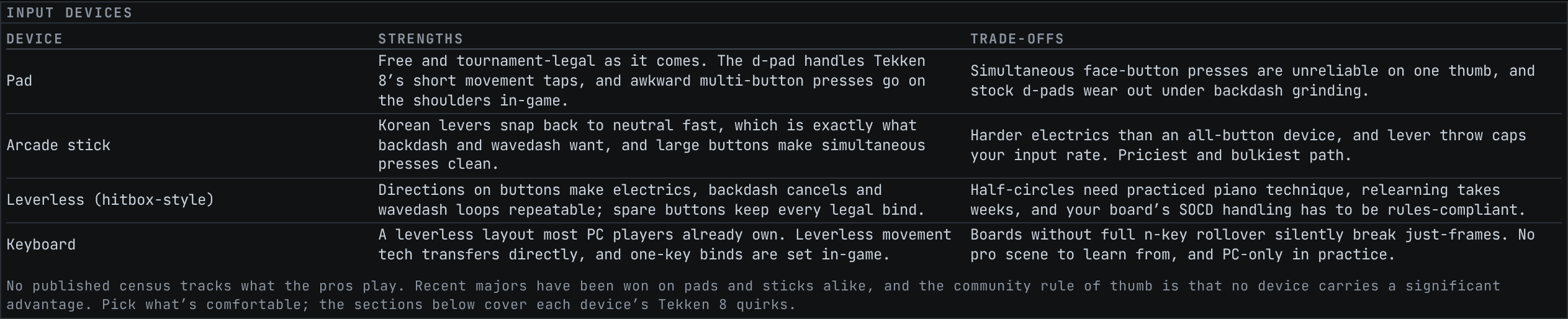
A three-column comparison of pad, arcade stick, leverless and keyboard, one line of upside and one of downside each.
Read the caveat under it before you read the table. No published census tracks what professional players use. Recent majors have been won on pads and on sticks, and the community's own rule of thumb is that no device carries a meaningful advantage. The sections that follow are about each device's Tekken 8 quirks, not about which one wins.
Pad, Arcade stick, Leverless (hitbox-style), Keyboard
One section per device, and each is built the same way: an opening line on what the device is, a list headed Why players pick it, a list of Trade-offs, and a closing note carrying whatever is specific to Tekken 8.
They exist to help you choose honestly, so the trade-offs get as much room as the strengths. Some of the sharper edges in them:
- Pad is the default and is tournament-legal as it comes, and its d-pad suits Tekken 8's short taps. The trade-off is one thumb doing all the directional work, simultaneous face-button presses that do not hold up, and stock d-pads that wear under backdash grinding.
- Arcade stick is the layout Tekken grew up on, and Korean lever design developed alongside Tekken movement. The electric is its weakest point, and physical lever travel caps how fast inputs can come out at all.
- Leverless (hitbox-style) turns directions into discrete presses, which is why electrics and backdash cancels are repeatable on it. Half-circles get harder, relearning takes weeks, and SOCD compliance becomes your responsibility.
- Keyboard is a leverless board most PC players already own, and the leverless movement techniques transfer. The key matrix is the trap: a board without full n-key rollover can silently ghost or delay a chorded key, which is the same failure the trainer warns about for diagonals.
The device notes carry the small facts that decide an argument. A lever cannot physically send opposite directions, so SOCD rules never apply to it. Tekken 8 resolves left and right to neutral in-game, but tournament rules judge what your controller sends, not what the game does with it afterwards.
Tournament rules
The short version of what major rulesets allow, and it is mostly good news: in-game binds are explicitly permitted, which takes the tightest simultaneous presses off the table for every device. Wired only at majors. SOCD cleaning is required of the controller, with stock gamepads exempt. Brook converters are allowed and Cronus and Titan devices are banned. Keyboards go unmentioned, which makes them legal by omission.
Check your own event's ruleset before you enter. This is a summary of the common ground.
Input lag, measured

Camera-based measurements put Tekken 8's input delay at roughly 2.5 frames on PC and 3.5 on PS5 and Xbox, with about a frame between platforms.
The refusal is the important half of this section: no credible Tekken 8 measurement separates controller models, so treat controller-latency marketing as unverified. The page will not repeat a number it cannot source, and neither should you when picking hardware.
How the site works out what your controller is
None of this is on the page you are reading, but it is what happens when you plug something in, and it explains the question you get asked.
The Gamepad API tells a browser very little: an identifier string, a button count, an axis count. It guarantees the button order only for pads it recognises and normalises, which covers mainstream controllers and excludes most fight sticks and leverless boards. For everything else the browser passes the device's raw button order straight through, and that order varies by device, by browser and by operating system.
So the site climbs a ladder, best evidence first:
- The browser already normalised it, and its layout is correct by specification.
- A layout this project verified by hand, in a browser, on the actual hardware.
- The community controller database, which ships with the site and is keyed by vendor and product id. It knows a great many devices by name.
- The shape of the pad. An arcade stick's d-pad usually arrives as an HID hat switch, which leaks a value no analog stick can produce, and that fingerprint says the device is reporting in raw order. The majority guess for that order is right a little over half the time.
- Nothing, in which case the full mapper opens, which is where every controller started before any of the rungs above existed.
Rungs one to four produce a proposal, never a saved mapping.
The one press that settles it
A proposal is presented as a question with a single right answer: press the button you attack with as 1. The panel names the button the guess expects, using the legend on the pad in your hands, so it asks for Square, X or Y as appropriate.
Press it where the proposal says it lives and the whole layout is confirmed and saved. Everything else in that proposal came from the same source and the same report order, so one press stands in for sixteen.
Press anything else and the proposal is discarded whole, the full mapper opens, and the press is not wasted: you were asked for your 1 and you pressed it, so that button is bound as your 1 and the mapper opens armed on 2.
That fallback is the reason a best-effort database is safe to ship. Being wrong costs one press, and the floor underneath is the mapper that already worked for everything.
A mapped controller stays mapped
Mappings are saved against a stable key derived from the controller's vendor and product ids, so the same device is recognised across sessions, across ports, and across reloads. Unplugging and plugging back in changes nothing.
Declining the offer is remembered too, and stored the same way. That matters more than it sounds: while the panel is open the site holds itself in mapping mode, where the controller drives nothing else on purpose, so a prompt that returned on every reload would read as a pad that had stopped working.
A controller the browser already normalised still gets offered the mapper once, because a standard remap can be wrong for a particular device. What it does not get is the same offer on every load.
To change a saved mapping, use the gamepad icon in the header, or the trainer's own Button mapping panel. Both open the full mapper on the connected pad.
Mappings travel with your data
A remapped controller is stored per device id, and a backup carries it. So does a remapped keyboard. Restore on a new machine and the pad you set up is already set up, which is the point of the one-press flow surviving the move.
Pads are merged on import by their device id, so restoring a backup taken on one machine does not throw away a controller you have only ever used on the other. What else a backup holds is covered in where your data lives.